
Incidents & Problems
Incident management
Incidents are unexpected disruptions or malfunctions in IT services, encompassing issues such as software crashes, hardware failures, or connectivity problems. Incidents typically require service teams to act fast to minimize the impact on business operations. If an issue affects a large number of users or critical systems and requires coordinated efforts to resolve, it is called a major incident.
Half the trouble of incident management is identifying incidents and finding the correct solution to minimize impact. To that end:
-
Your AI Assistant has been trained to identify incidents and serve the incident form to employees
-
Your Assistant uses intent-aware clustering with configurable thresholds for sensitivity, volume, and time window to automatically identify related incidents.
-
When thresholds are breached, a channel notification is sent to workspace admins, and a major incident is officially created only upon their acknowledgment.
All Atomicwork workspaces support managing requests and service requests, but only IT workspaces__ support incident management.
Incident management workflow
-
An employee raises an issue via Slack or Microsoft Teams to your AI Assistant.
-
Your Assistant recognizes it as an incident and serves the incident form to the employee.
-
If the incident is submitted through an incident catalog item, Atomicwork routes it to the workspace mapped to that incident catalog. General incidents that are not tied to an incident catalog follow your workspace routing configuration. When multiple eligible workspaces exist for a general incident, admins can configure Smart Routing to assign the workspace automatically or smart suggestions so Atom preselects a workspace and the employee can override it from a dropdown before submission, or requester selection from the list of eligible workspaces.
-
It raises the issue as an incident in the Atomicwork portal, which can be accessed under a new view, available only to agents of an IT workspace, called Incidents.
-
When an organization admin creates an IT workspace, mandatory incident attributes like category, impact, and urgency also get created in the Atomicwork workspace as per ITIL specifications.
-
IT workspace admins can also add custom attributes for incidents.
-
They can create SLAs that apply only to incidents.
-
They can also create and execute workflows for incidents.
-
If multiple related incidents are detected, Atom surfaces a major incident proposal. Workspace admins can approve or decline proposals from the Acknowledgements view or from Slack and Microsoft Teams notifications. Approved major incidents link related incidents automatically. Workspace admins can also create major incidents directly, and agents can promote incidents to major incidents or demote major incidents back to standard incidents where allowed. Read more about major incident management in Atomicwork.
Managing incident attributes
The incident form that will be served to employees when they raise an issue that your Assistant thinks is an incident consists of the default and custom attributes that an admin has configured as "employee-facing".
Here's how you can view a list of the incident request attributes:
-
Navigate to Settings > Your workspace > Request attributes.
-
The Request types column will indicate which attributes are mapped to the incident request type.
-
The default incident attributes are:
-
Agent
-
Status
-
Impact
-
Priority
-
Urgency
-
Category and sub-category. We've added some common category and sub-category options as default values.
-
Major incident enabled, which identifies whether an incident is a major incident. You can use it in request views, CSV exports, workflows, SLA policies, and analytics filters.
-
Priority, impact, and urgency are not editable fields. Admins can create new statuses and categories and modify existing categories.
Modify category and sub-category
-
Click on the gear icon to the right of the Category attribute.
-
You can add a new category or modify any of the default categories and subcategories.
-
When you add a category, you must add at least two subcategories.
-
Don't forget to save your changes!
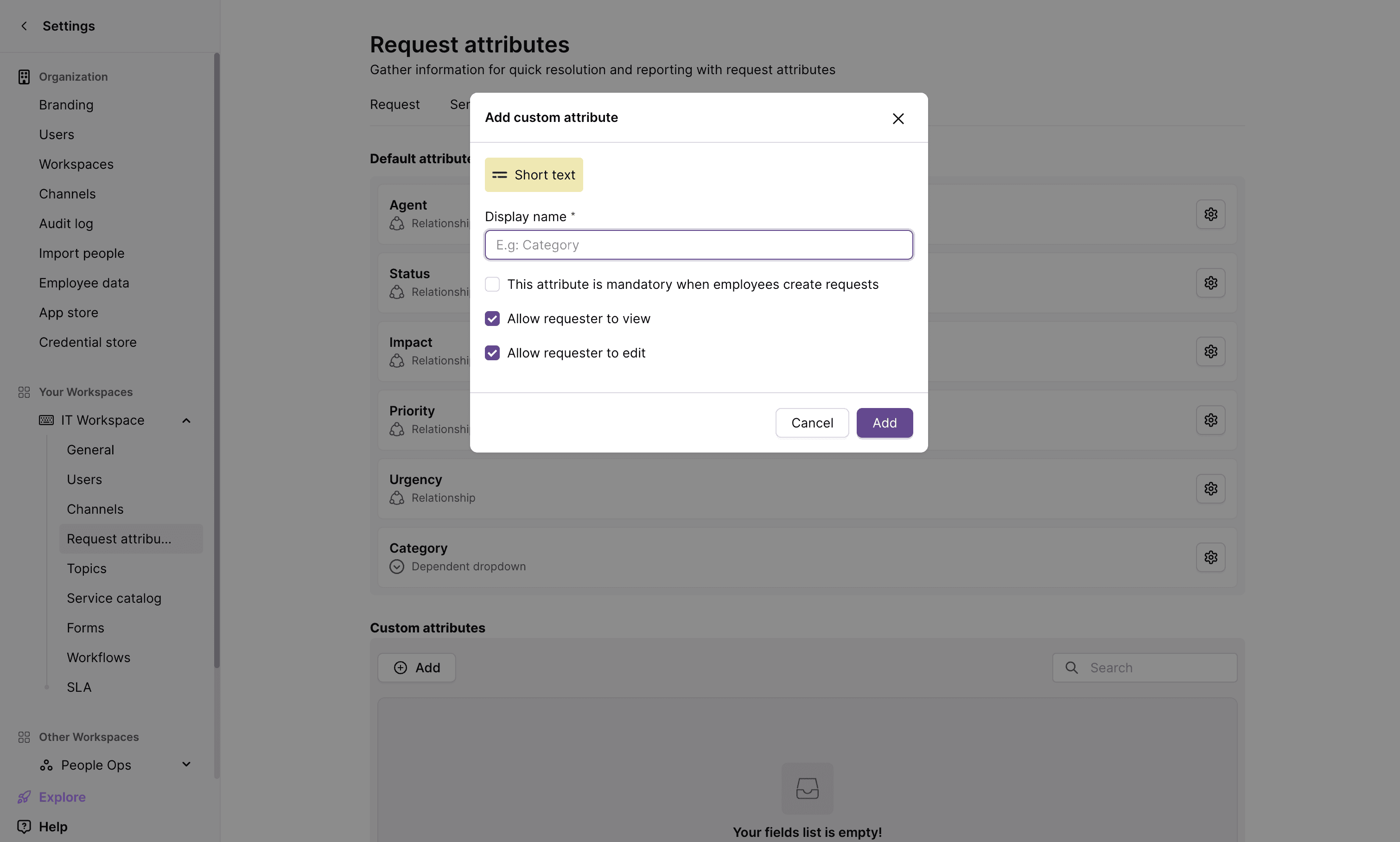
Create a custom attribute
You can create a new custom incident attribute by clicking on the Add button at the top right. Custom attributes will be displayed to the employee raising the incident as a part of the incident form based on your preferences.
Creating incident workflows
You can set up incident workflows to automatically assign incidents, notify stakeholders, create channels, update attributes, and perform other workflow actions using workflows. Here's how you can set up an incident workflow:
-
Navigate to Settings > Your IT Workspace > Workflows.
-
Click on the Incidents__ tab.
-
Click on the Create a workflow button at the top right.
-
A workflow can have triggers, conditions, and actions. Incident triggers can be any of the following events:
-
Incident is created
-
Incident is updated
-
Agent is updated
-
Subject is updated
-
Description is updated
-
Status is updated
-
Priority is updated
-
Reply is sent
-
Private comment is added
-
Impact is updated
-
Urgency is updated
-
Category is updated
-
Sub-category is updated
-
System
-
Actions can involve adding tags, updating attributes (like category, status, priority, or urgency) or third-party actions like creating a Slack channel, creating an Okta user or removing an Azure AD user. Actions executed by a workflow can also trigger other workflows.
Workflows can use the Major incident enabled or is_major_incident condition to target major incidents. Where supported, workflow actions can also update the major incident attribute to enabled or disabled.