Identity & Access Management
On-prem Active Directory: Permissions
Customers need to set up a webhook based on their on-premise Active Directory (AD) environment to perform actions from Atomicwork. This guide explains the process, required permissions, and endpoint configuration.
Understanding the webhook requirement
- The webhook must be provided by the customer according to their AD setup.
- The endpoint and API vary for each customer.
- The webhook requires access control, meaning specific permissions need to be granted to Atomicwork.
Steps to configure the webhook
Step 1: Identify the webhook endpoint
Determine the appropriate endpoint within your AD environment. This typically follows Microsoft's documented process for setting up webhooks with external services.
Step 2: Grant necessary API permissions
To enable Atomicwork to interact with AD for provisioning or synchronization tasks:
- Grant access to the Inbound Provisioning API in Microsoft Entra ID.
- Configure API permissions to allow external services, such as Atomicwork, to provision users and sync data securely.
- Follow Microsoft's access control guidelines.
Step 3: Configure the webhook and synchronization settings
Depending on your AD setup, you may need to:
- Set up a bulk user data upload process for synchronization jobs. See Microsoft Graph API bulk upload.
- Define attribute mappings and configure the provisioning API settings in the app. See Microsoft's inbound provisioning API configuration guide.
Step 4: Provide endpoint details to Atomicwork
Once the webhook is set up and permissions are granted, share:
- The webhook URL.
- Any authentication credentials or tokens required.
- The expected request format, if customized.
[!NOTE] If these credentials are saved as API credentials in Atomicwork, admins can restrict where they are used by configuring allowed hosts. Include the AD webhook endpoint host in the allowed-host list so Atomicwork can use the credentials only with the approved endpoint.
Step 5: Test and validate
Atomicwork sends test requests to confirm that the integration is working correctly. Any required adjustments can be made at this stage.
Additional resources
- Microsoft Graph API Bulk Upload
- Grant API Access for Inbound Provisioning
- Configure an App for Inbound Provisioning
On-prem AD permissions for Atomicwork
| Permission | Description | Workflows / Actions | Permission type |
|---|---|---|---|
| User.ReadWrite | Read and update the signed-in user's profile | Allows users to manage their own account data, such as profile updates. Useful for self-service portals. | Delegated |
| User.Read.All | Read all user profiles in the directory | Required for reporting, auditing, or apps that list users. Needed for read-only access across organization users. | Application |
| User-LifeCycleInfo.ReadWrite.All | Read and write user lifecycle info, such as hire date | Enables automation of onboarding and offboarding processes. Required for HR integrations. | Application |
| User-Mail.ReadWrite.All | Read and write access to all users' mailboxes | Used for migration tools, compliance archiving, or automated email access by apps or services. | Application |
| User-PasswordProfile.ReadWrite.All | Reset passwords and manage user password settings | Required for password reset workflows, helpdesk tools, or automation of account recovery processes. | Application |
| User-Phone.ReadWrite.All | Read and update users' phone numbers | Enables management of MFA contact info, user phone sync from HR systems, or mobile-based workflows. | Application |
| User.EnableDisableAccount.All | Enable or disable user accounts | Critical for access control automation, such as disabling leavers or suspending compromised accounts. | Application |
| User.ManageIdentities.All | Manage user identities and federated or external identities | Used in B2B/B2C apps, federated identity systems, or hybrid AD setups. Enables complex identity tasks. | Application |
Additional permissions for removing users from Azure AD
-
Your personal Microsoft account must be tied to a Microsoft Entra tenant to update your profile with the User.ReadWrite delegated permission on a personal Microsoft account.
-
To update the employeeLeaveDateTime property:
- In delegated scenarios, the admin needs the Global Administrator role, and the app must be granted the User.Read.All and User-LifeCycleInfo.ReadWrite.All delegated permissions.
- In app-only scenarios with Microsoft Graph permissions, the app must be granted the User.Read.All and User-LifeCycleInfo.ReadWrite.All permissions.
-
To update the customSecurityAttributes property:
- In delegated scenarios, the admin must be assigned the Attribute Assignment Administrator role and the app granted the CustomSecAttributeAssignment.ReadWrite.All permission.
- In app-only scenarios with Microsoft Graph permissions, the app must be granted the CustomSecAttributeAssignment.ReadWrite.All permission.
-
User-Mail.ReadWrite.All is the least privileged permission to update the otherMails property.
-
User-PasswordProfile.ReadWrite.All is the least privileged permission to update the passwordProfile property.
-
User-Phone.ReadWrite.All is the least privileged permission to update the businessPhones and mobilePhone properties.
-
User.EnableDisableAccount.All and User.Read.All are the least privileged combination of permissions to update the accountEnabled property.
-
User.ManagedIdentities.All is required to update the identities property.
Configure OU-specific provisioning
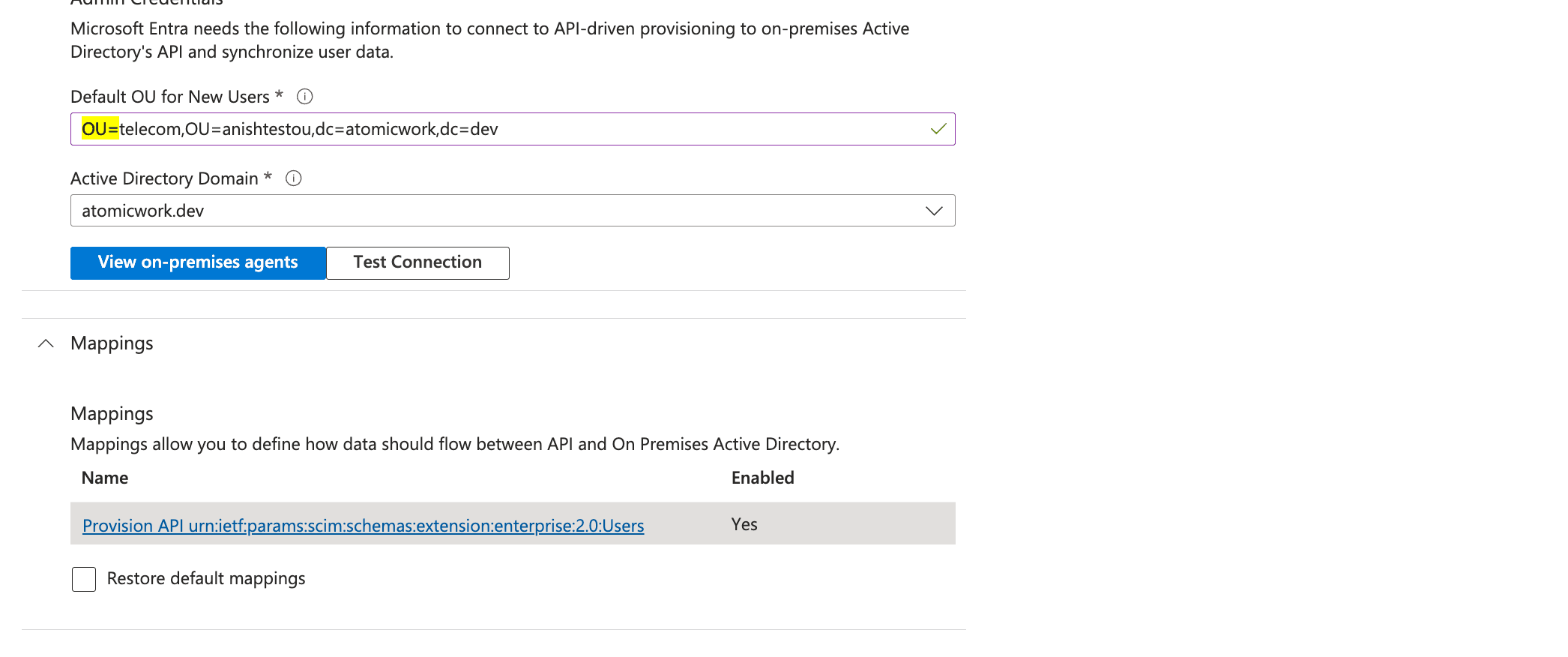
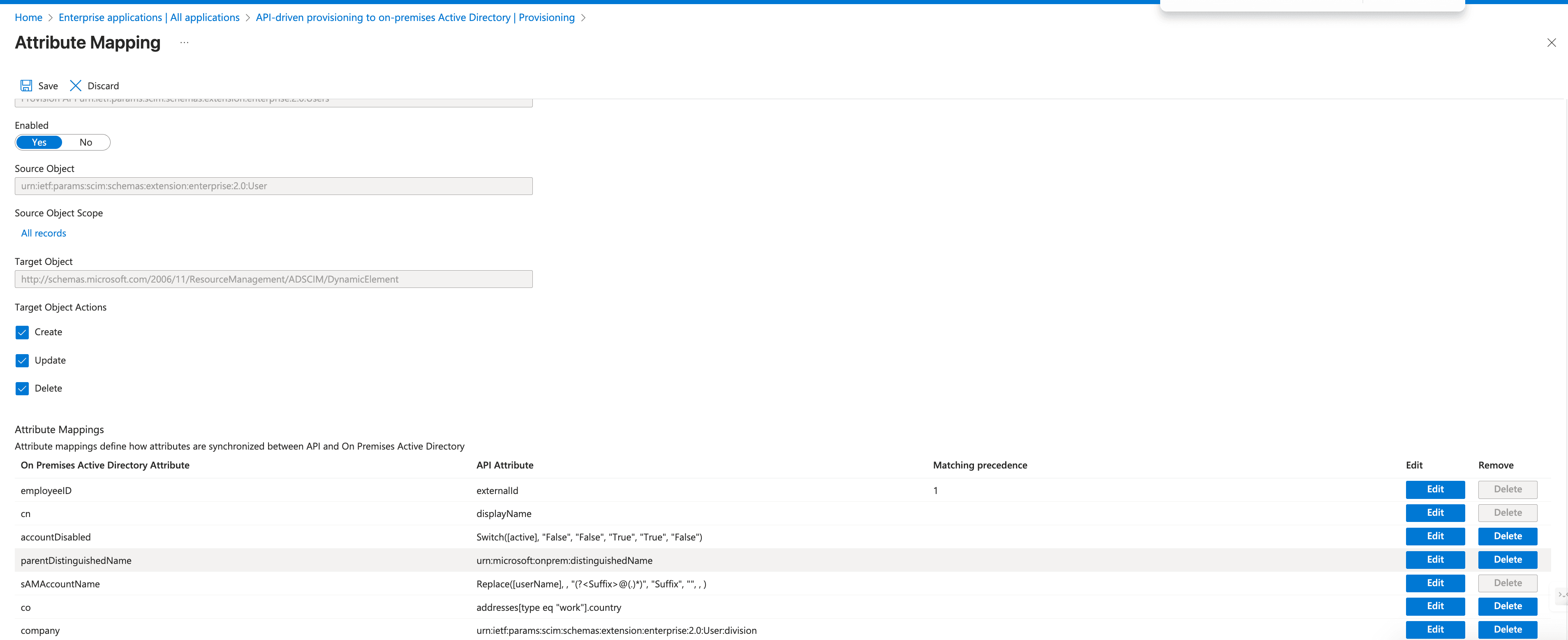
As part of the SCIM-based provisioning integration, attribute mapping in the Microsoft Entra setup may prevent users from being provisioned into the correct Organizational Unit (OU) in on-premises Active Directory.
To enable OU-specific provisioning from the SCIM payload, update the attribute mapping for parentDistinguishedName as follows:
| Field | Value |
|---|---|
| On-prem AD attribute | parentDistinguishedName |
| API attribute | urn:microsoft:onprem.distinguishedName |
This change ensures Microsoft Entra correctly reads the OU passed in the SCIM payload and places the user accordingly.