
Communication & Collaboration
Slack
Slack
Connect Slack channels to workspaces
Atom is an AI Assistant that helps users find the right answers from multiple knowledge sources or past conversations in Slack or MS Teams. Atom also helps in creating requests or reporting issues to appropriate teams when users need more help.
Setting up channels
You can configure routing for channel-based requests from employees. For example, if you want all requests from #ask-IT-anything to be sent to the IT workspace, you’d set that up here.
Atom can handle queries for as many business units or departments as possible. This means that IT and HR can have their own channels and configure topics for Atom to learn from in their own workspaces; Atom can understand queries based on IT or HR intent and route them to the appropriate team.
Adding a channel
- Navigate to Settings > Channels. Click on the View All option (If you see a number, it's the number of channels Atom is already a part of).
- Click on "Add" to add a new routing rule for Atom. You need to map which workspace you want to route requests to when you add a new channel.
Adding Atom directly to a channel
- If an employee adds Atom to a channel without setting up a routing rule, admins get notified so they can map it to a channel. Alternately, admins can navigate to Settings > Channels > Unmanaged channels to map unmanaged channels to workspaces.
- You can also set default routing rules for requests created in unmanaged channels - requests can either be routed to a workspace of your choice, or you can ask the requester to choose a workspace while creating a request.
Connect Slack and Atomicwork
Connect Atomicwork to your Slack account so that your employees can get instant help, raise requests, and get status updates via Atom. You can also:
- Sync employee data from Slack so your Assistant can send personalized responses based on attributes like location, department etc.
- Trigger Slack actions in workflows like channel creation or send a DM based on events.
[!NOTE] Note: The Atomicwork-Slack app uses multiple large language models (LLMs) to generate responses and summaries. As with all AI systems, outputs may occasionally be inaccurate or incomplete. We recommend reviewing critical information before taking action.
Permissions
To connect Slack to Atomicwork, you need:
- Org admin access in Atomicwork
- Slack workspace admin permissions to approve app installations
The Atomicwork Slack app requires the following scopes:
| Permission | Purpose |
|---|---|
| assistant:write | Use Slack's AI Agents and Assistants capability so Atom can provide AI-powered help and support in Slack. |
| app_mentions:read | Receive and process messages where @Atom is mentioned, so the app can respond contextually and trigger relevant workflows. |
| channels:history | Read messages in public channels where the app has been added. This lets the app fetch full thread context when a user creates a request from a conversation. |
| channels:join | Join public channels when prompted by a workflow action or user request, so the app can post messages and execute actions in those channels. |
| channels:read | Read basic information about public channels (names, IDs) to display available channels for routing and workflow configuration. Does not access message content. |
| chat:write | Post messages, reply in threads, and update or delete messages sent by the app. Limited to messages the app itself has sent. |
| chat:write.customize | Customize the display name and avatar of messages sent by the app, so replies can appear as the relevant agent or responder. |
| chat:write.public | Post messages in public channels where the app hasn't been added as a member. Used for workflow notifications and updates that need to reach specific channels. |
| conversations.connect:read | Read metadata about Slack Connect shared channels, so users can include shared channels when configuring routing or learning from conversations. Does not access message content. |
| files:read | View and download files shared in the workspace. Used when workflows need to process or reference files shared in conversations. |
| files:write | Upload and share files within Slack, such as reports, summaries, or workflow-related documents. Limited to files generated by the app. |
| groups:read | Read basic metadata of private channels (name, topic, member list) to display them for routing and workflow configuration. Does not access message content. |
| groups:write | Post messages in private channels where the app has been added. Used for updates, notifications, and workflow-related messages. |
| im:history | Read message history in direct messages between a user and the app. This lets the app reference prior interactions and maintain conversational context. |
| im:read | Read basic metadata for DM conversations (channel IDs, user IDs) to identify and manage DMs where the app is active. Does not access message content. |
| im:write | Send direct messages to users — for example, to share workflow updates, confirmations, or contextual assistance. |
| metadata.message:read | Read structured metadata attached to messages via the Slack Message Metadata API. This lets the app process contextual information (such as workflow identifiers) without accessing message text. |
| reactions:read | Read emoji reactions added to messages. Used to detect user signals like acknowledgment or approval within conversations. |
| reactions:write | Add emoji reactions to messages to acknowledge user actions, confirm workflow completion, or provide lightweight feedback. |
| team.preferences:read | Read workspace-level preferences so the app can align its behavior with workspace configurations. Limited to non-sensitive workspace information. |
| team:read | Read basic workspace information (name, domain, icon) to identify the workspace context the app is operating in. |
| users.profile:read | Read basic user profile information (name, title, contact details) to personalize interactions and attribute actions correctly. Limited to publicly available profile fields. |
| users:read | Identify and reference users within the workspace for routing, assignments, and workflow attribution. Limited to basic user identity information. |
| users:read.email | Read user email addresses to map Slack users to their corresponding Atomicwork profiles. This enables cross-system linking and ensures workflows are attributed to the correct user. |
Connecting Slack and Atomicwork
- Navigate to Settings > App store > Slack > Connect
- Click on the "Connect" button
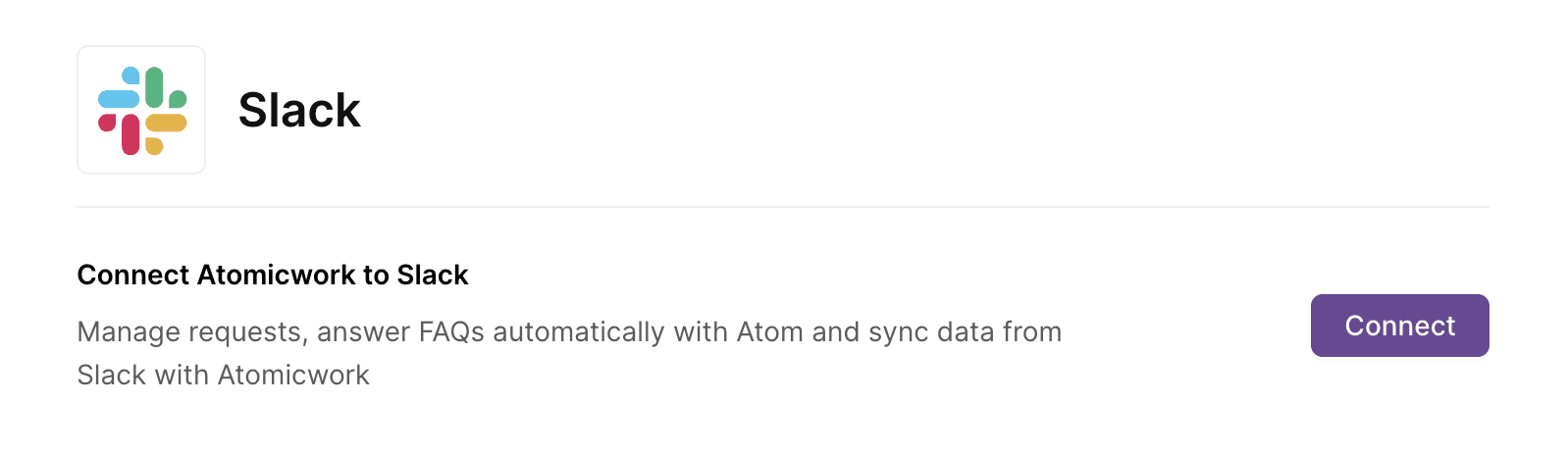
Authorize the connection, and then, we're done!
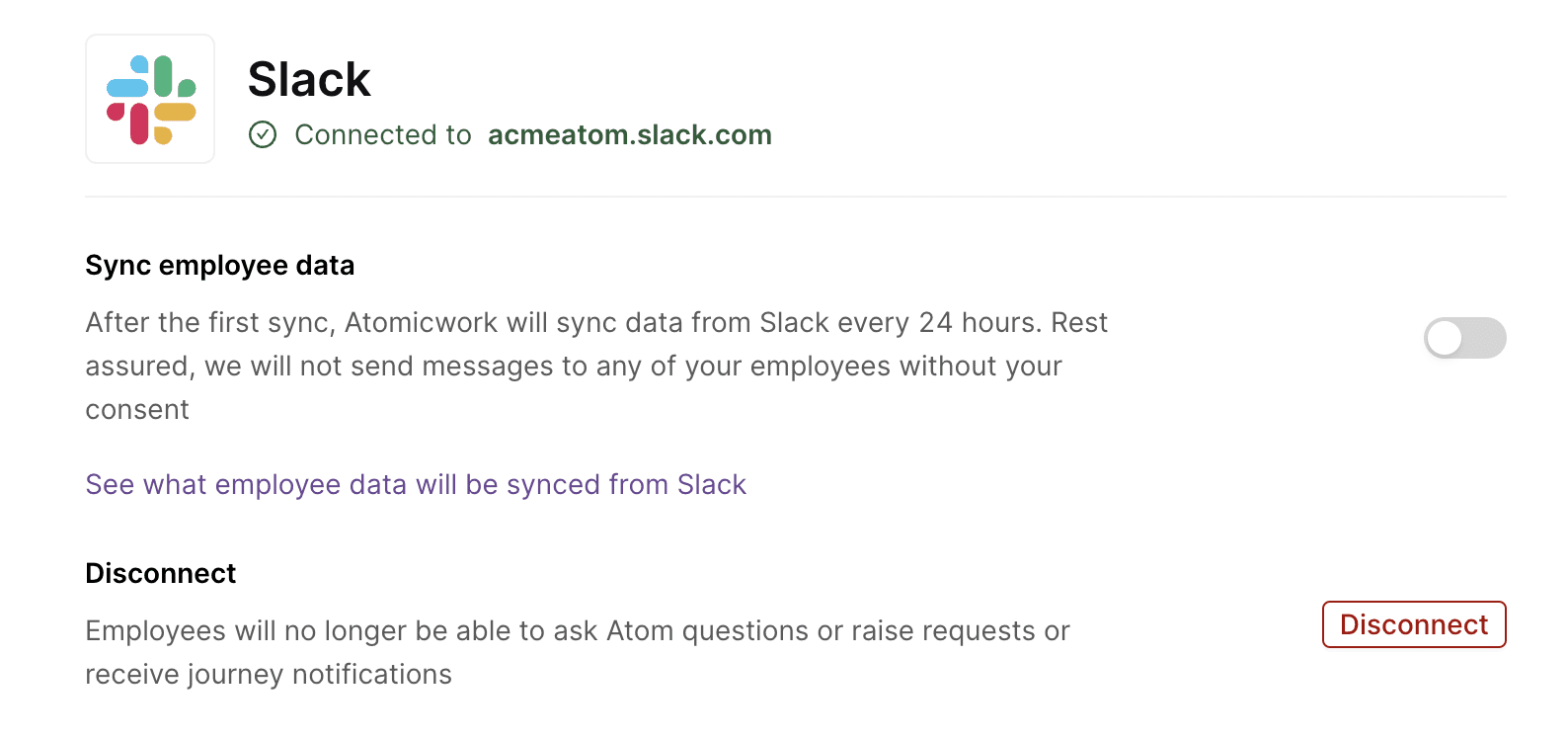
Sync employee data from Slack
- Navigate to Settings > App store > Slack > Settings
- Toggle the "Sync employee data" option. Once you toggle it on, Atomicwork will sync data from Slack every 24 hours.
Here are all the fields Atomicwork will sync from Slack:
| First name |
|---|
| Last name |
| Phone number |
| Timezone |
| Title |
Once you enable sync, your Assistant will use these fields to provide personalized responses. For example, if you have a list of holidays by location, it will only provide relevant responses based on location. If an employee from Australia asks for a holiday list, they'll only get the Australia holiday list and not the UK or the US list.
You can also use these fields to personalize journey messages and trigger journeys.
Adding your Assistant to a Slack channel
Your Assistant can be added to both public and private Slack channels. It will learn from conversations only in public channels to update its knowledge base. It can only perform certain workflow actions (Add users to a channel or post to a private channel) if it's a part of the channel.
Here’s how you can add your Assistant to a Slack channel:
- Navigate to the channel to which you want to add it
- Type “@Atom” and press enter. If it’s a public channel, this is all you need to do to add it to the channel. If it’s a private channel, you need to invite your Assistant to the channel explicitly (click on “Invite”).
For more information on adding people to Slack channels, please read Slack’s help center article.